Identify the authoritative copy
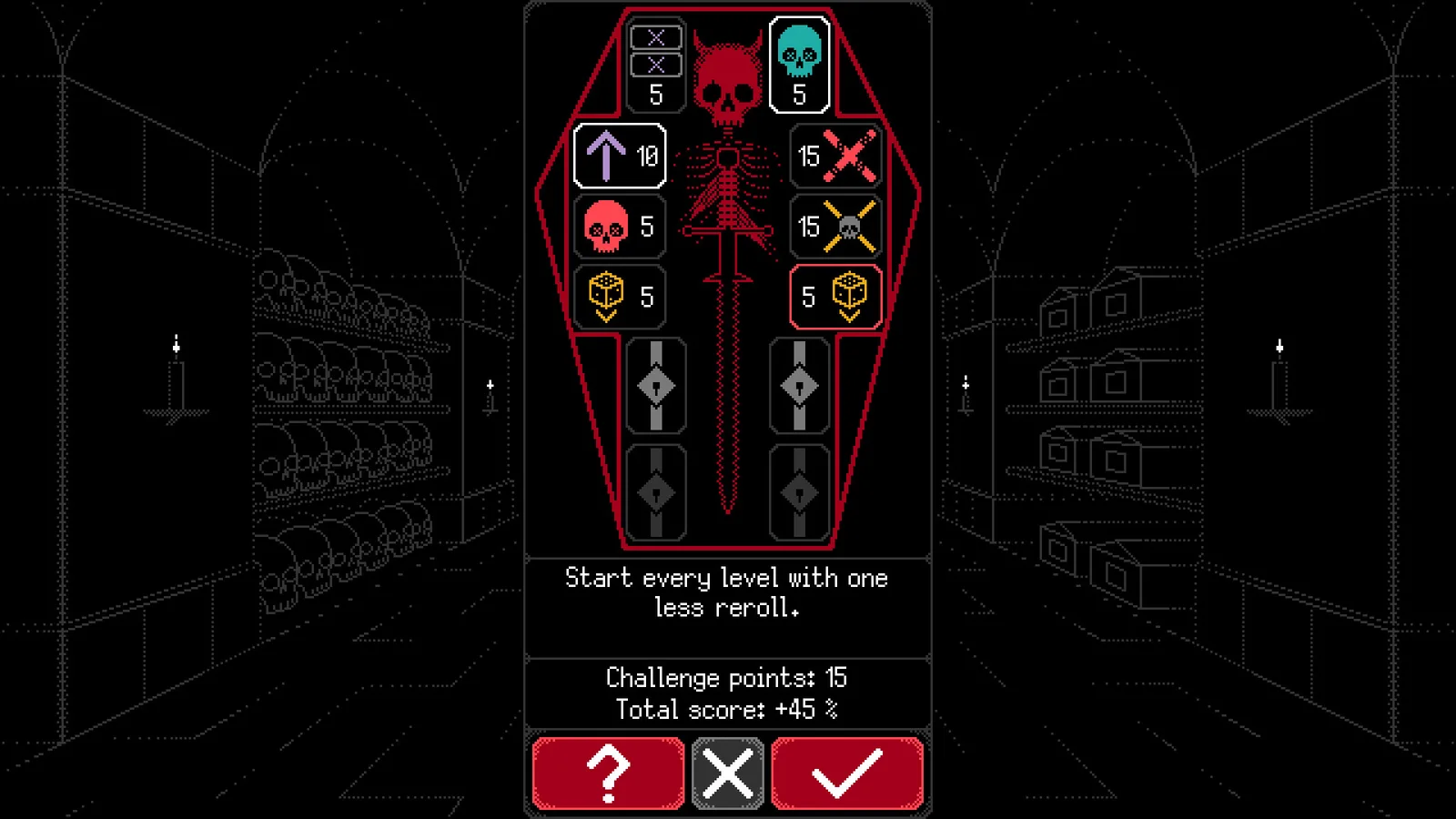
Before changing sign-in or cloud settings, decide which device contains the progress you want to keep. Photograph the mode unlocks, skull compendium state, and any visible run record.
Check platform and version
Confirm that both devices use the intended account and current game build. The mobile 1.5.3 notes include a cloud-save UI fix, so outdated interface behavior should not be generalized to every version.
The official cloud-save notes exclude transfers between mobile and PC. They allow synchronization between Windows, Mac and Linux.
- Account
- Platform
- Game version
- Last known-good time
- Progress markers
Change one layer at a time
Reconnect the platform service, reopen the game, and compare the state. Do not delete local files, reinstall, and change accounts in one attempt.
Sources
Official Dice of Kalma App Store listing and version history →
Official Steam announcements →
Dice of Kalma Steam community hub →